

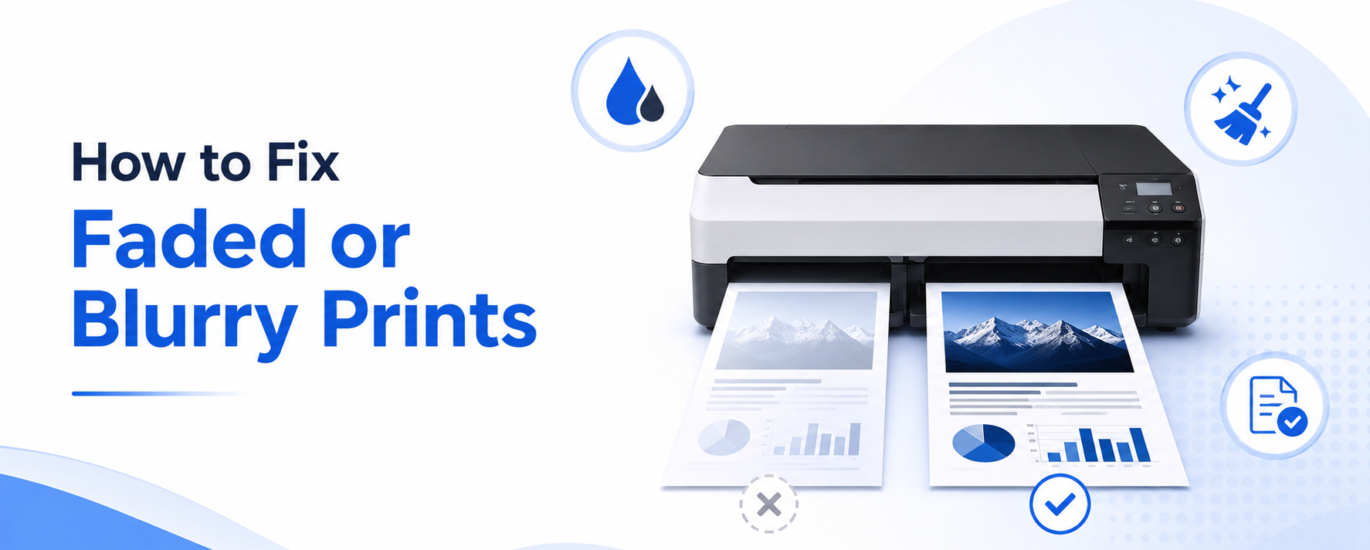
Faded or blurry printouts can affect the quality and readability of your documents. This issue is often caused by low ink or toner levels, clogged printheads, incorrect print settings, dirty printer components, or worn cartridges. Fortunately, most print quality problems can be resolved with basic troubleshooting.
Common Causes of Faded or Blurry Prints
- Low or empty ink cartridges
- Low toner levels
- Clogged or dirty printheads
- Incorrect print quality settings
- Misaligned printheads
- Dirty printer rollers or internal components
- Damaged or expired cartridges
- Using incompatible or poor-quality paper
Steps to Fix Faded or Blurry Prints
1. Check Ink or Toner Levels
Low ink or toner is one of the most common causes of faded printing. Replace cartridges if levels are low or empty.
2. Run a Printhead Cleaning Cycle
Most printers include a built-in cleaning utility that helps remove dried ink and blockages from the printheads.
3. Align the Printheads
Misaligned printheads can cause blurry text and uneven print quality. Use your printer’s alignment tool to correct the issue.
4. Adjust Print Quality Settings
Ensure the printer is not set to Draft or Economy Mode. Switching to Standard or High-Quality printing can improve output clarity.
5. Clean the Printer Components
Dust, ink residue, and debris inside the printer can affect print quality. Carefully clean accessible areas according to the manufacturer’s guidelines.
6. Replace Old or Damaged Cartridges
Expired, damaged, or defective cartridges may produce poor-quality prints even if they contain ink or toner.
7. Use the Correct Paper Type
Using paper that is not designed for your printer can result in smudges, faded text, or blurry images. Verify that the paper settings match the media being used.
8. Print a Test Page
A test page can help identify whether the issue is related to specific colors, alignment, or printhead performance.
9. Update Printer Drivers
Outdated printer drivers may occasionally cause print quality inconsistencies. Installing the latest driver can help ensure optimal performance.
10. Check for Firmware Updates
Printer manufacturers often release firmware updates that address print quality issues and improve overall reliability.
Preventing Future Print Quality Problems
- Print regularly to prevent ink from drying in the printheads
- Store cartridges properly when not in use
- Use genuine or high-quality replacement cartridges
- Keep the printer clean and free from dust
- Perform routine maintenance checks
Need Additional Assistance?
If your prints remain faded or blurry after completing these troubleshooting steps, there may be a hardware issue with the printhead, imaging drum, or other internal components. Further diagnosis or professional service may be required.
Tip: Regular printer maintenance and timely cartridge replacement can help ensure sharp, clear, and professional-quality prints every time.