

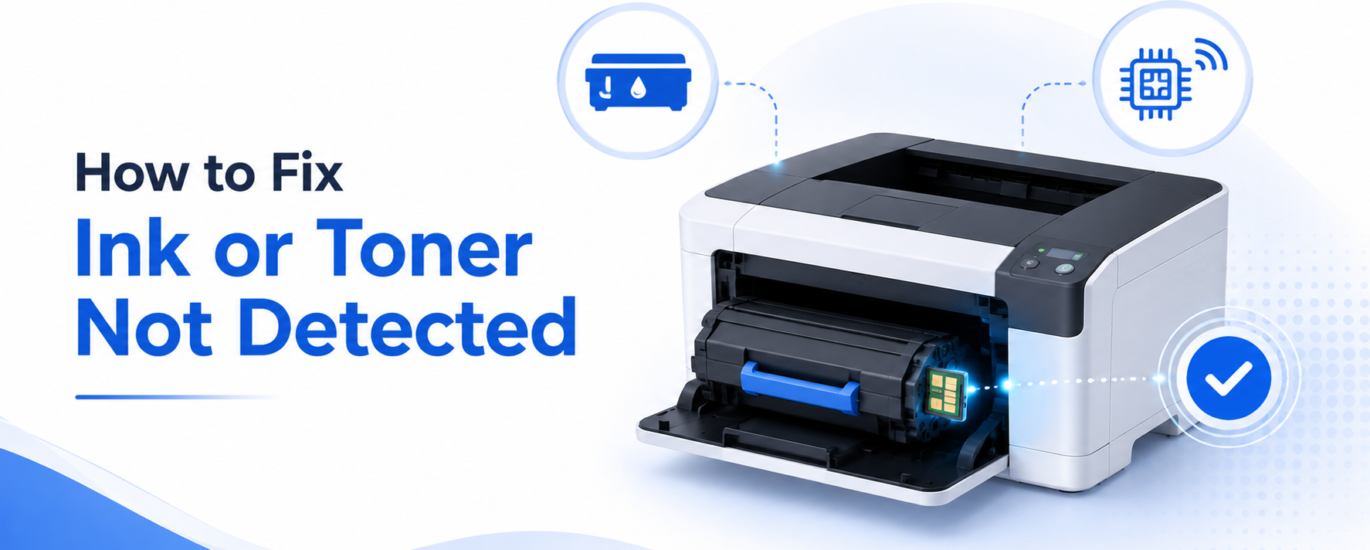
When a printer cannot detect an ink cartridge or toner cartridge, printing may stop completely, and error messages may appear on the printer display or computer screen. This issue is commonly caused by improper cartridge installation, dirty contacts, incompatible cartridges, or firmware-related problems.
Common Causes of Ink or Toner Detection Issues
- Cartridge not installed correctly
- Protective tape or packaging not removed
- Dirty cartridge contacts
- Incompatible or unsupported cartridge
- Empty or defective cartridge
- Printer firmware issues
- Damaged cartridge chip
- Internal printer hardware problems
Steps to Fix Ink or Toner Not Detected Errors
1. Restart the Printer
Turn off the printer, unplug it for a few minutes, then power it back on. This can reset temporary detection errors.
2. Reinstall the Cartridge
Remove the ink or toner cartridge and carefully reinstall it. Ensure it clicks securely into the correct slot.
3. Remove Protective Packaging
New cartridges often include plastic covers, clips, or protective tape. Verify that all packaging materials have been completely removed.
4. Clean Cartridge Contacts
Turn off the printer and gently clean the cartridge’s metal contacts using a soft, lint-free cloth. Dust or residue can prevent proper communication with the printer.
5. Check Cartridge Compatibility
Ensure the cartridge model matches your printer. Using unsupported or incompatible cartridges may trigger detection errors.
6. Verify Ink or Toner Levels
Some printers may fail to recognize cartridges that are empty or nearing the end of their lifespan.
7. Update Printer Firmware
Outdated firmware can cause cartridge recognition problems. Installing the latest firmware may resolve compatibility issues.
8. Inspect the Cartridge for Damage
Check for cracks, damaged chips, leaks, or broken components that could prevent the printer from identifying the cartridge.
9. Try Another Cartridge
If available, install a different compatible cartridge to determine whether the issue is with the cartridge or the printer itself.
10. Reset the Printer
Some printers offer a factory reset option that can clear persistent cartridge detection errors and restore default settings.
Preventing Future Cartridge Detection Problems
- Use cartridges designed for your printer model
- Handle cartridges carefully to avoid damaging contacts or chips
- Store cartridges in a cool, dry environment
- Install cartridges immediately after opening
- Keep printer firmware up to date
When to Seek Additional Help
If the printer still cannot detect the ink or toner cartridge after completing these steps, the issue may involve a faulty cartridge sensor, damaged contact pins, or another internal hardware problem. Professional diagnosis or repair may be required.
Tip: Always ensure cartridges are installed correctly and free from packaging materials before troubleshooting more advanced printer issues.